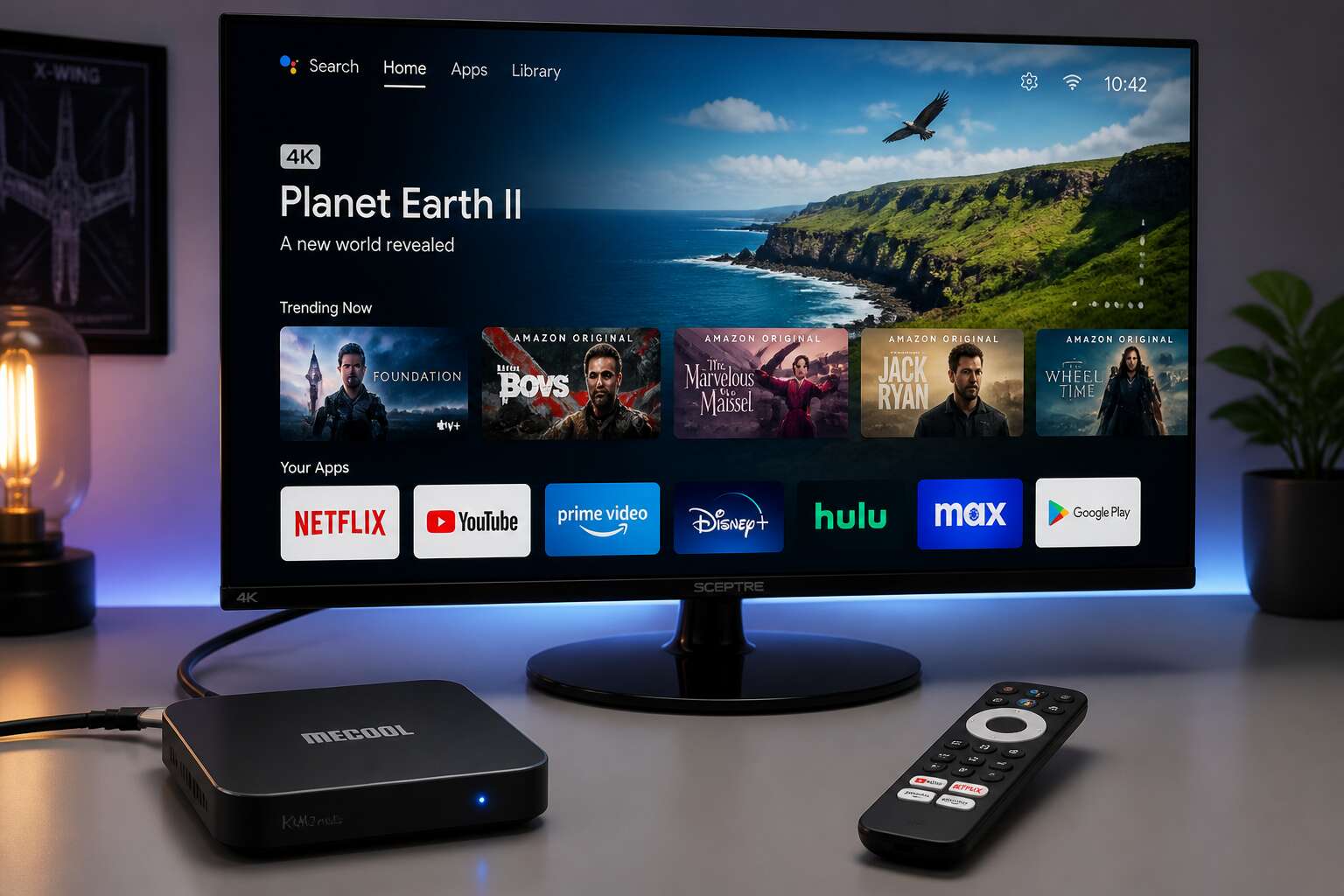
Understanding the Basics of Connecting a Streaming Box to a Computer Display
Why Pair a Streaming Device with a Monitor?
Most household monitors sit idle after a desktop upgrade. That panel is capable of more than word processing. An android tv box to pc monitor setup unlocks streaming platforms directly on a larger screen without buying a television. It is a practical solution for flats, student rooms, and home offices across South Africa.
Connecting is straightforward when you understand the ports. Most boxes use HDMI, while older monitors may require an adapter. Check whether your display supports HDCP before you start, because some services refuse to play without it. Why pair a streaming device with a monitor? A monitor offers lower input latency than a smart TV, tighter pixel density, and often better colour accuracy.
- You keep your existing peripherals connected.
- You avoid paying for a second television.
- You get a dedicated screen for media apps.
That combination makes an android tv box to pc monitor link a sensible upgrade for budget conscious viewers.
Port Compatibility: HDMI, VGA, and DisplayPort
Before you buy cables, look at the back of your monitor. The port arrangement determines your next step. Most android tv box to pc monitor setups rely on HDMI, which carries video and audio in a single cable. That is convenient, but older displays often lack an HDMI socket entirely.
If your monitor only has a VGA port, you need an active converter. VGA transmits analog signals, while HDMI sends digital ones. A cheap passive cable will not work. DisplayPort is less common on streaming boxes, but some monitors feature it. In that case, a simple HDMI to DisplayPort adapter usually does the job.
Check the ports in this order:
– HDMI offers the simplest connection.
– VGA requires an active converter.
– DisplayPort needs an adapter cable.
Confirm HDCP compliance on any adapter you choose. Otherwise, your android tv box to pc monitor connection will show a blank screen on paid streaming apps.
Resolution and Refresh Rate Differences
Hundreds of hours of streaming content await, but your monitor’s resolution and refresh rate determine how that content actually looks. Resolution refers to the pixel count on your screen, with 1080p serving as the baseline and 4K offering four times the detail. Refresh rate measures how often the screen updates per second, typically 60Hz on most monitors.
The streaming box outputs a fixed signal, but your monitor’s native resolution is a hard limit. A 4K box on a 1080p monitor downscales the picture, which can soften text and fine details. Conversely, a 1080p signal on a 4K monitor requires upscaling, and the monitor’s internal processor handles the quality of that job.
Refresh rate matters for motion smoothness, but most streaming content runs at 24 or 30 frames per second. A 60Hz monitor handles this without issue, while high refresh rate panels like 144Hz simply repeat frames. The key pairing for an android tv box to pc monitor is matching your box’s output to the monitor’s native capability, often 1080p at 60Hz.
– 1080p at 60Hz is the safest common target.
– 1440p monitors may require manual resolution settings.
– 4K needs an HDMI 2.0 port on both devices.
Set the box to the monitor’s native resolution rather than the box’s maximum output. This avoids scaling artifacts and ensures the crispest image. The budget android tv box to pc monitor user benefits from checking these values in the display settings menu first, before troubleshooting other potential issues.
What Makes a PC Monitor Different from a Television
Connecting an android tv box to pc monitor often surprises newcomers with the silence. Most monitors lack built-in speakers, so I always recommend checking for a 3.5mm audio jack on the box or planning a separate soundbar. Another difference is the absence of a TV tuner. Your monitor cannot receive broadcast channels, which means every minute of entertainment depends on the streaming box’s internet connection.
- No speakers, so audio needs its own path.
- No TV tuner, so live TV requires a streaming app.
- Narrower viewing angles, so position yourself directly in front.
- Stronger color accuracy for work, but less oversaturated vibrancy for movies.
These factors matter because monitors prioritise clarity over convenience. With a little patience, the pairing works perfectly!
Essential Cables and Adapters for the Hookup
The Standard HDMI to HDMI Route
The most common failure in a streaming setup is the cable, not the box. The standard HDMI to HDMI route seems simple, but you still need to think about length and connector shape. Plug one end into the android tv box, the other into your pc monitor, and hope the ports line up. In practice, monitor stands often block the rear panel, forcing a tight bend.
I always check the port orientation before buying anything. A few rand on adapters can save you from a headache:
- Right angle HDMI adapter for tight spaces.
- HDMI coupler to join two shorter cables.
- A 0.5m extension with a lockable connector.
Keep the total run under 5 metres. Longer runs invite signal loss, especially with older cables. A certified High Speed cable with 18Gbps bandwidth handles most android tv box to pc monitor needs without fuss.
VGA and DVI Adapters for Legacy Monitors
If your monitor predates 2015, you will need a VGA or DVI adapter for your android tv box to pc monitor setup. The right adapter solves this, but not just any cable. VGA is analog, so you need an active converter with a chip. DVI is digital, but you must match the pin type. Here’s what to check:
- HDMI to VGA: requires external power, so get one with a USB lead.
- HDMI to DVI-D: carries video only, no audio.
- Verify the DVI connector layout before ordering.
I once used a passive cable and got a blank screen. That mistake is common, but you can avoid it.
USB-C and DisplayPort Alternatives
Many PC monitors skip HDMI entirely, leaving DisplayPort and USB-C as the only input options. For an android tv box to pc monitor hookup, these ports demand specific adapters. DisplayPort is common on office monitors. A passive adapter will not work here because your TV box outputs HDMI, not DisplayPort. You require an active converter that translates the signal. USB-C can also carry video, but only if the monitor has DisplayPort Alt Mode. The essential items in your kit:
- HDMI to DisplayPort active converter with power cable
- USB-C to HDMI adapter that outputs video
- USB-C to DisplayPort lead for monitors without HDMI
Check the direction and power needs of every adapter before you trust the connection! A mismatched cable produces a blank screen, the monitor’s quiet rejection of an incomplete handshake.
Handling Audio: Separate or Integrated
Audio often becomes the forgotten passenger in an android tv box to pc monitor setup. Many monitors ship with either a weak pair of speakers or no speakers at all. The picture can look flawless, while the dialogue arrives muffled or entirely absent. That leaves the sound stage incomplete, a hollow experience that undermines the entire upgrade.
The good news is that audio does not need to stay trapped inside the monitor. Most TV boxes send sound through HDMI alongside the video signal. If your monitor lacks built-in speakers, you need to extract that audio somewhere else. A simple 3.5mm aux output on the TV box itself often solves the problem. Connect a set of powered speakers directly to that port and bypass the monitor completely.
There are cases where the HDMI port carries audio but the monitor refuses to play it due to HDCP handshake quirks. This matters more than most buyers expect, especially in South Africa where monitor models differ from global retail variants.
Here is a short checklist for avoiding audio headaches:
- Check whether the monitor has a headphone jack on the side or bottom bezel
- Confirm if the TV box offers a separate analogue audio port
- Test the HDMI audio output before you buy a Bluetooth transmitter
Bluetooth adds a further layer of unpredictability. Wireless headphones may connect to the TV box but introduce a delay that becomes obvious during dialogue scenes. The safer route is always the wired path. When the box outputs both formats, keep the HDMI audio enabled even if you use a separate aux connection. Some apps insist on presenting all sound through the primary output.
Once you free the audio from the monitor, the experience feels complete. The android tv box to pc monitor connection works best when sound is treated as a separate stream, not as an afterthought tucked behind the display. Plan the cable layout around that idea and you avoid the final, most irritating hurdle of the project.
Power Supply and Cable Management Tips
Cables are the least glamorous part of an android tv box to pc monitor setup, yet they decide whether the project lives or dies. A flimsy HDMI cable can ruin crisp 4K signals. The distance between the box and the monitor changes everything. A short, high speed HDMI cable with Ethernet rating handles the signal without drama. For older monitors, a HDMI to DVI adapter preserves the picture but drops audio. DisplayPort adapters introduce handshake delays that feel like a ghost in the machine.
Power supply deserves the same attention. Most TV boxes ship with a 5V adapter that barely reaches the monitor’s power strip. A surge protected extension lead solves the reach problem. Keep the power brick away from the signal cables, because interference hums through unshielded lines.
Cable management is about airflow and fault finding. When the signal drops, you want to trace the path without fighting clutter. A tidy android tv box to pc monitor connection makes future swaps easier.
Step-by-Step Setup and Configuration Guide
Navigating the Android TV Box Menu
The first boot is a quiet moment of reckoning. You have connected the android tv box to pc monitor, and now the launcher appears without ceremony. The remote demands your attention.
Navigate to Settings, then Display. I check the resolution first. The default rarely matches your monitor’s native panel. Adjust it until the image holds steady. The menu structure varies by firmware, but the path is generally consistent.
- Select Settings from the home screen.
- Open Display and choose the matching resolution.
- Return to the main menu and locate the input source settings.
- Disable the screen saver to protect a PC panel from burn-in.
Once the visual output stabilizes, walk through every submenu. The entire setup depends on these small choices. Hidden toggles often sit where you least expect them, and that is where the real configuration happens!
Adjusting Output Resolution on the Device
The resolution menu determines how well your android tv box to pc monitor connection performs. Take your time here. A single wrong selection can produce a black display that forces you to start over. Each firmware version hides the option in a different corner, but the principle stays consistent: match the output to the panel’s native specifications.
Refresh rates matter just as much as pixel count. A PC monitor often supports a broader range than a television, and the device lists each mode with its timing information. Select the entry that mirrors your panel’s natural state. Common monitor formats include:
- 1920 x 1080 at 60 Hz for older panels
- 2560 x 1440 at 144 Hz for gaming displays
- 3840 x 2160 at 60 Hz for modern 4K monitors
For monitors with unusual aspect ratios, the scaling options sit nearby. Overscan adjustments correct edge cropping, a common issue when a television-style signal meets a PC display. The order of modes varies by firmware generation. Some boxes place 4K at the top, others bury it in a submenu. Scroll through every listing. The correct option for your android tv box to pc monitor pairing is rarely the first one.
Optimizing Monitor Picture Settings
Power off the monitor before wiring anything. Connect the android tv box to pc monitor via HDMI, then power both on. The first boot may take a minute. Once the home screen appears, open the monitor’s on-screen menu. Look for a picture mode labelled PC or Graphics. That disables aggressive processing.
Set sharpness to 50. Choose neutral colour temperature. Contrast sits around 80. Brightness varies with ambient light. I prefer adjusting one setting at a time. Then play a dark video. Watch for crushed shadows. Tweak gamma until details emerge. The whole process takes five minutes.
Common Connectivity Issues and Quick Fixes
When the screen goes dark after connecting an android tv box to pc monitor, most users assume the worst. The handshake between the two ends is the real culprit. Work through the setup in a logical sequence. From the home screen, open Settings, select Network, and join your Wi-Fi. Set the time zone to automatic. Then play a test clip. If stuttering appears, enable frame rate matching.
For troubleshooting, these quick fixes solve most problems.
- Reseat the HDMI cable on both ends.
- Try a different HDMI port.
- Replace the cable with a shielded one.
- Power cycle both devices. Unplug the box, wait thirty seconds, restart.
If the screen remains dark, test the box on another display. That isolates the faulty component. A clean connection fixes nearly everything! An android tv box to pc monitor setup rewards patience.
Switching Input Sources on the Monitor
The difference between a blank screen and a working android tv box to pc monitor setup is one menu. The default source is rarely correct. The physical button or joystick sits on the bezel’s underside or right edge. Press it once to open a small menu. Scroll to the input source entry.
The sequence varies by brand, but the logic holds:
- Access the source list via the dedicated input button.
- Identify the exact HDMI socket used by your cable.
- Select that port and wait for the signal.
A black screen usually means the monitor is stuck on a different input. Choose the active port and the Android home screen appears within seconds.
Enhancing Performance and User Experience
Audio Output: Internal Speakers vs. External Sound
When you connect an android tv box to pc monitor, the picture may be flawless, but the sound often falls short of expectations. Most monitors ship with tiny internal speakers that produce thin, brittle audio. This is a frequent complaint among users who want real immersion.
External sound transforms the experience. A simple soundbar or a pair of powered bookshelf speakers can reveal layers in the mix that internal drivers cannot reproduce. I find that adding a compact DAC bypasses the monitor’s weak amplifier, giving you cleaner output.
Consider these external options for your setup:
- Soundbars with dedicated subwoofers for low end punch.
- Active studio monitors for accurate, flat response.
- Bluetooth transmitters paired with low latency speakers.
Internal speakers work for system chimes, but they crush dialogue and music. For performance from your android tv box to pc monitor, external sound is the only choice. Your ears will thank you!
Reducing Input Lag for Gaming and Streaming
Input lag ruins the experience. When you connect an android tv box to pc monitor, the delay between pressing a button and seeing the result can be jarring. Monitors handle this better than televisions, but only if you configure them properly.
Game mode is essential! It disables post-processing that adds frames of delay. For streaming, the same principle applies. A monitor’s response time setting, often buried in the OSD, can shave off precious milliseconds.
- Enable game mode on the monitor itself
- Turn off motion smoothing and dynamic contrast
- Use a wired ethernet connection for streaming stability
I have seen users blame the box for stuttering when the real culprit was a monitor setting. The android tv box to pc monitor connection is only as responsive as its slowest component. Every frame matters when you are chasing a win or watching a live event.
Matching Aspect Ratio and Overscan Settings
Seeing black bars on the sides of your screen is not a hardware failure. It is a mismatch between the box’s output and the monitor’s expectations. Most televisions apply overscan, cropping edges so broadcast content fills the frame. PC monitors rarely do. They expose every pixel, revealing borders the box assumes are hidden. When you connect an android tv box to pc monitor, search the display settings for overscan compensation. On some boxes it appears as “screen size” or “zoom.” Set it to 100% or “just scan” for a one-to-one image.
– Check the monitor’s “aspect ratio” control for 16:9 or 4:3 options
– If the picture looks stretched, toggle the “fit” or “fill” mode
– Confirm the box’s “safe area” setting is not adding extra padding
A wrong aspect ratio makes faces look elongated or squashes subtitles. The android tv box to pc monitor link rewards careful adjustment. Spend two minutes in the settings menu before settling in for a movie night, and the difference will be immediate.
Leveraging Picture-in-Picture and Split-Screen Modes
Most people treat a PC monitor as a single-purpose window, but the android tv box to pc monitor connection can turn that window into several panes. Picture-in-Picture keeps one stream running in a corner while the main screen handles another feed. Split-screen modes divide the display into separate zones, each running its own app. Some boxes handle this straight away, while others need the display settings configured first:
- Enabling PiP in the device’s picture menu
- Assigning each app to a specific screen zone
- Adjusting the secondary window’s transparency
The result is a multitasking workstation with clear visual hierarchy. South African users can track live cricket, a video call, and a streaming playlist at the same time. This arrangement reduces the need for a second television entirely.
Advanced Use Cases and Pro-Level Tips
Transforming a Monitor into a Full Smart Display
With a quiet monitor sitting on a desk, you have a canvas that most streaming devices simply ignore. The real skill of an android tv box to pc monitor setup lies in turning a passive screen into a workstation for sideloading and multitasking. You can run a lightweight browser, a file manager, and a video player simultaneously, without the stutter that plagues lower tier hardware.
A few choices separate the seamless experience from the frustrating one:
– Enable developer options and force GPU rendering for smoother animations.
– Use a USB hub with ethernet for a stable high bitrate stream.
– Choose a box with a rock solid chipset, not just a high number on the box.
Treat the monitor as a proper smart display. Disable screen savers and adjust the display sleep timer to avoid a black screen during a lengthy episode. The proximity to the router and the quality of the HDMI cable matter more than the brand name on the device. Your monitor becomes a dependable smart screen for focused work, not just a larger phone.
Using the Box as a Secondary Monitor for Productivity
A monitor left in idle darkness is a wasted oracle. When you connect an android tv box to pc monitor purely for productivity, you gain a spectral workspace that mirrors your main rig. I run a code editor on one screen while the box streams logs and metrics on the other. The chipset handles this without complaint. For the truly arcane, install a lightweight remote desktop client and control the box from your primary machine. That opens a portal to a second environment entirely.
Consider these advanced scenarios:
- Use the box as a dedicated email and calendar terminal to keep Slack off your main display.
- Repurpose it into a live dashboard for system monitors, weather feeds, or stock tickers.
This setup works best when you match the refresh rate to the task. A 60 Hz panel is enough for text; a 144 Hz panel adds ghostly fluidity to scrolling. The android tv box to pc monitor pairing becomes a silent partner in your daily grind, and the second screen never distracts you from the primary workflow.
Casting and Screen Mirroring from a Computer
Casting from a desktop to an android tv box to pc monitor setup removes the need for a second HDMI run. I use Miracast for quick mirroring when I need to show a browser tab. AirScreen turns the box into an AirPlay receiver, which also opens Apple devices. Latency holds for static content, though not video editing.
Try a dedicated casting app that supports multiple protocols. The box stays on one input, and you toggle the source from the PC. Screen mirroring works best when the monitor uses game mode to minimize processing delay.
- Reduce resolution to 1080p. The box scales more cleanly.
- Disable HDCP. It often blocks mirroring entirely.
- Keep the PC and box on the same network band, either both 5 GHz or wired.
The result is an android tv box to pc monitor pairing for presentations, quick demos, or a second peek at your main workstation.
Keeping Firmware Updated for Peak Compatibility
The android tv box to pc monitor setup changes once you push it past daily streaming. I use one box as a status client in a home office, pulling a live readout from a second machine and leaving the monitor idle for hours. That quiet routine makes firmware more important than most realize. A stale version can alter the display sleep pattern or break wake commands, and you only notice when the panel refuses to light.
Keeping firmware updated for peak compatibility means controlling the update sequence. Region builds differ, so I match the release to the hardware revision and never jump across vendor channels.
- Record the current changelog before refreshing.
- Save the old build to a local drive.
- Test the handshake after one full reboot.
Roll back if the monitor flickers. A deliberate firmware chain keeps the android tv box to pc monitor stable through power dips and less common display timings.
Custom Launchers and Remote Control Shortcuts
The stock launcher feels like a queue for the content factory. It wants you to browse, not operate. In a workspace where a monitor doubles as a control panel, that is dead weight. I replace the launcher with a minimalist grid that exposes only the applications I use for the android tv box to pc monitor pipeline. It cuts two taps from every action and removes the temptation to drift into a streaming menu during work hours.
Remote control shortcuts are the unsung efficiency lever. A single button press can trigger a script, switch the monitor input, or open a file manager. I assign the number keys to specific sources. One for the live status dashboard, another for the camera feed, and a third for the local media server. Building a custom configuration with an app like Button Mapper takes five minutes, but it reshapes the entire workflow. The box becomes a switchboard, not just a player. For a strict android tv box to pc monitor arrangement, that shift in control is what separates a toy from a tool.

0 Comments