Why Is Your Android TV Box Storage Constantly Filling Up?
Cache Overload from Streaming Apps
Many South African streamers are discovering a peculiar digital paradox: their Android TV box storage space running out is often triggered not by the content they keep, but by the ephemeral ghosts of content they have already watched. The cache files built by applications are a silent, gluttonous entity. Every time you scroll through a banner on the main menu, the device downloads metadata and preview assets. This is the system-managed cache, designed to speed up your interface, yet it rarely respects the physical limits of your hardware. When your box receives a false warning about low memory, it is usually because this temporary data has swelled to occupy the bulk of your internal drive.
The primary offenders are the heavy streaming subscriptions you access daily. These platforms generate massive amounts of temporary data to ensure smooth playback without stuttering.
– The video player pre-loads several minutes of content for scrubbing accuracy.
– Thumbnails for every new episode are fetched and stored immediately.
– Audio tracks in multiple languages are loaded into storage for quick switching.
– Background artwork for the menus is refreshed on every boot.
This accumulation is invisible because you never interact with these files directly. They exist solely to reduce the loading time during your actual viewing session. However, the sheer volume of these sessions adds up fast. The accumulation happens without any visible prompt or user consent, which is precisely why the android tv box storage space running out issue feels so sudden. It is not a slow leak; it is a consistent flood of temporary files fighting for permanent residency on your device. The standard settings menu often shows this as “Cache” but offers no easy way to filter the specific culprits, leaving you with a full drive and a sluggish launcher.
Bloatware and Pre-installed System Apps
In the shadowy recesses of your Android TV box, an invisible congregation of pre-installed applications plots against your storage space. These uninvited residents, summoned by manufacturers and service providers, consume valuable memory without a whisper. My own device arrived with nine separate apps I never opened, yet each demanded its slice of the internal drive.
– System update agents that download patches autonomously.
– Brand-specific launchers that refresh their widgets every hour.
– Diagnostic tools that log every heartbeat of the hardware.
The android tv box storage space running out problem deepens because these apps often restore themselves after every factory reset. They are persistent ghosts, refusing to be exorcised. Even disabling them leaves residual data behind. For South African viewers, this is a quiet siege, one that turns your media hub into a cluttered tomb. Every boot, those same pre-installed applications wake anew, whispering for space they never earned.
Large Game Installations and App Updates
Gaming on an Android TV box demands substantial storage. A single high-fidelity title can consume several gigabytes of internal space. Modern games bundle expansive textures, voice packs, and level data, each file claiming a permanent residence on your device. I have watched devices choke after just two game downloads.
App updates behave similarly. Developers release patches that replace entire components rather than small tweaks. The updated version often requires more room than the previous one, even for minor improvements. Updating ten apps creates a cumulative drain on available capacity.
- Game updates that download additional content packs
- Apps that duplicate data during the update process
- Large installation files that remain after setup completes
The android tv box storage space running out scenario worsens when maintaining several installed titles at once. Eventually, the android tv box storage space running out issue forces you to choose which games to uninstall just to keep the device functional.
Unnecessary Downloaded Media Files
Streaming services have replaced the ritual of buying DVDs, but they have not cured humanity’s compulsion to hoard digital files. Your Android TV box probably holds three seasons of a reality show you abandoned in episode two. A single 4K movie download consumes between 20 and 50 gigabytes. I have watched one film rental claim more space than ten streaming apps combined.
Downloaded media files linger in storage long after the initial excitement fades. They occupy folders you never inspect, waiting for a rewatch that will never come. The android tv box storage space running out problem accelerates when multiple family members download content:
- Movie rentals that expire but never delete themselves
- Full series downloads that retain already watched episodes
- Music libraries synced from phones and immediately forgotten
Every gigabyte matters when the android tv box storage space running out issue forces you to delete a film you paid for just to install a weather app.
Old System Updates and Residual Files
Your Android TV box’s storage is a silent battleground. You notice the warning first as a small notification, then as a persistent nag whenever you try to install a new app. The culprit for the android tv box storage space running out issue is often hiding in the system files, not just your downloads.
System updates are a double-edged sword. They bring new features and security patches, but they also leave behind a digital fossil record. When an update installs, the system creates a backup of the old firmware to allow for a rollback. This “previous version” file is large, often exceeding a gigabyte. The system marks it for deletion after a set period, but sometimes that cleanup never happens. A failed update attempt can also leave behind fragmented code blocks that the system refuses to touch.
Residual files are the sneakiest consumers of space. They are the orphaned data left behind when an app is uninstalled or when a cache is cleared. The system directory, often labeled “Miscellaneous,” can balloon with these stray pieces. These are not movies or photos you can see; they are invisible background noise. They accumulate through routine operations, like updating an app that changes its data structure or streaming a video that creates a temporary buffer that fails to clear fully.
The architecture of the Android TV box system partition is the core problem. This partition holds the operating system and is read-only in normal operation. Manufacturers allocate a fixed, incompressible size for it. When updates need more room than the partition allows, the system starts scavenging space from other areas. This leads to a condition where the system partition is full, but the user-data partition appears mostly empty. You see several gigabytes of free space, but you cannot use them for apps, because the system itself is choking.
The residual data grows according to a predictable pattern:
- Update Overlays: Each security patch creates a new overlay file to modify the existing system code without rewriting it. These overlays stack up until a major OS upgrade consolidates them.
- Log Files: The system writes activity logs for debugging. These logs can grow to hundreds of megabytes over months of daily use, especially if an app is crashing repeatedly in the background.
- Dex Cache: Every installed app creates an optimized cache of its executable code. When an app updates, the old dex cache is supposed to be erased, but it frequently remains in a “deleted” state that still occupies physical blocks.
You cannot fix this by simply uninstalling a few games. The android tv box storage space running out problem is a system-level contortion. A fresh factory reset will clear the residual files and rebuild the partitions, but it will not increase the partition size. The issue will return with the next update cycle. The hardware is working correctly; the storage management is the weak link in the chain.
Top Signs Your Android TV Box Is Running Out of Space
Frequent ‘Storage Space Running Out’ Pop-ups
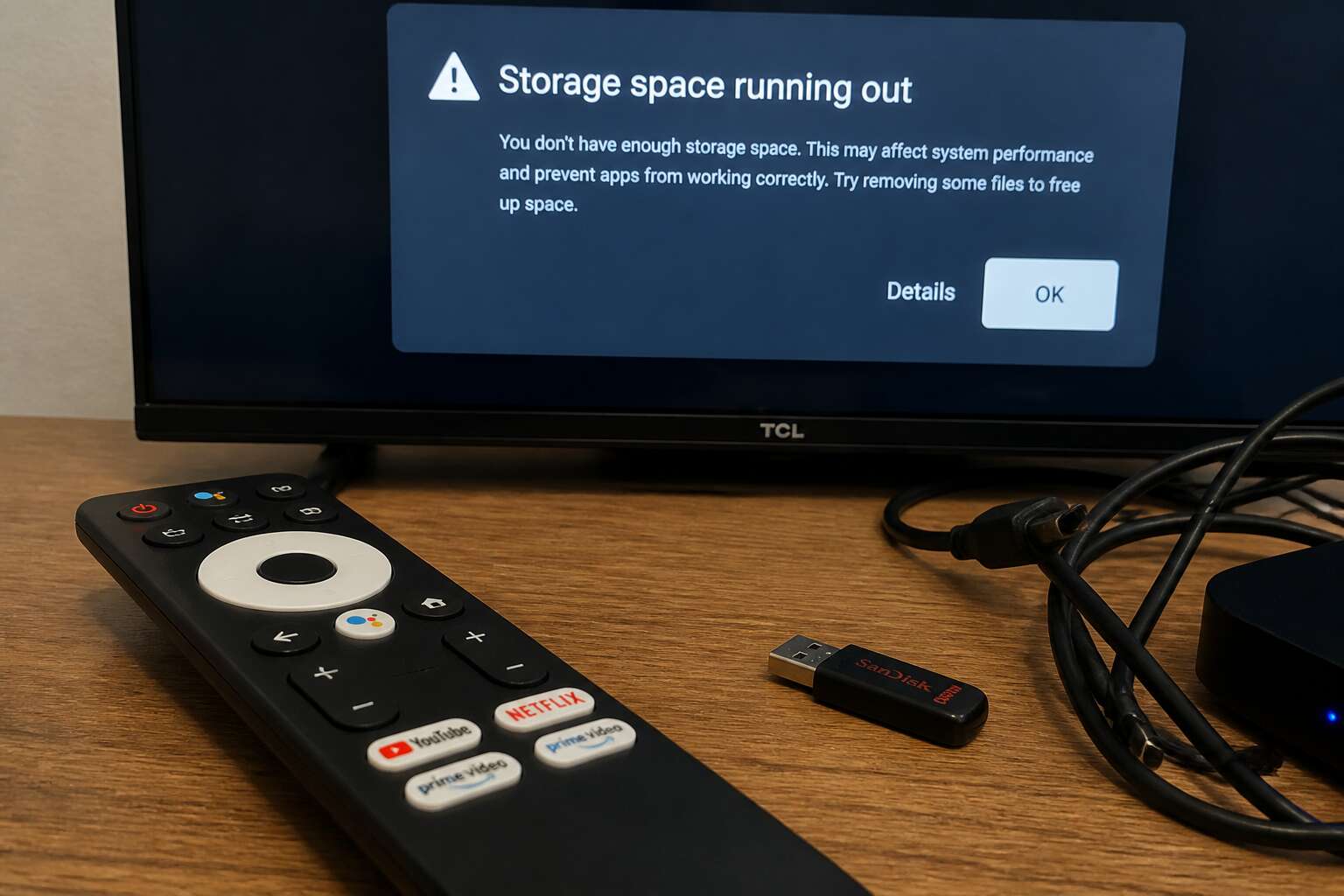
The average Android TV box ships with a paltry 8 to 16 gigabytes of internal storage. For most users, that space vanishes faster than expected. When that happens, you start seeing frequent ‘storage space running out’ pop-ups. These alerts are not random. They signal a deeper issue with your device’s capacity.
Several signs indicate your android tv box storage space running out. Watch for these clues:
- Apps crash or fail to update without a clear reason.
- The launcher lags when you navigate between menus.
- New app downloads instantly fail or show an error.
The pop-ups themselves often appear during heavy use, like while streaming or after a system update. When your android tv box storage space running out, the operating system prioritizes critical functions, slowing down background tasks. You might also notice that previously saved settings or login data revert to defaults. That is the system clearing temporary files to make room. Ignoring these signs leads to a bricked interface, where even basic playback becomes impossible.
Sluggish Performance and Unexpected App Crashes
Inability to Install or Update New Apps
Fewer things frustrate a cord cutter than pressing install and watching the download stall at 97%. When your android tv box storage space running out, the Play Store becomes an unforgiving gatekeeper. The system reserves a small buffer to function, and if that buffer is compromised, every new download is rejected. You delete an old app, try again, and the same error appears.
The issue crystallizes during critical updates. Your favourite streaming service demands a fix, but the download refuses to start. This failure occurs because new updates rewrite the entire application file, requiring temporary space to complete the operation. This hidden overhead is often larger than the app itself.
When storage pressure becomes critical, the consequences multiply:
1. The Google Play Store displays a generic error code instead of a clear explanation.
2. Download progress bars freeze and reset to zero.
3. Sideloaded apps fail to parse their installation packages.
4. System applications fail to compile their permission databases.
Each of these symptoms points to a single root cause. The partition is full. The device cannot create the temporary directories needed for a clean installation. You are effectively locked out of new functionality until you free up significant space, not just a few megabytes, but enough to satisfy the system’s hidden allocation requirements. The device prioritises system stability over user requests in this state short of the direct intervention.
Lagging Playback and Buffering Issues
When your android tv box storage space running out, the picture on your screen starts telling its own story. That smooth 4K stream you were enjoying begins to stutter, not because your Wi-Fi suddenly lost its mojo, but because the device has no memory left to process the incoming data packets. It’s juggling the video decompression, the audio sync, and the interface rendering all at once, and it simply drops a few balls. The result is a video that skips frames like a scratched vinyl record from the old Mzansi days.
Streaming apps fight for scarce resources, and your box prioritises keeping the system alive over delivering pixel perfection. You will notice the video quality drops from sharp to fuzzy without warning. The dreaded buffering circle appears, even when your internet speed test shows a healthy 50 Mbps. This artificial stutter is a storage artefact, not a network problem.
A clear sign of storage fatigue manifests in playback behaviour that defies logic:
– The audio continues, but the video freezes for several seconds.
– Fast-forwarding causes the app to crash back to the home screen.
– Switching between streaming services takes an eternity.
– Subtitles lag behind the dialogue by a noticeable margin.
This erratic behaviour pushes many users to blame their fibre provider. Yet the true culprit sits inside the box, buried under a pile of fragmented data. When the storage controller has no free space to write temporary playback buffers, every stream becomes a gamble. The device cannot pre-fetch enough data to maintain a stable frame rate. It scrapes by with minimal resources, and your viewing experience suffers the consequences.
Freezing Home Screen and Launcher Errors
Your launcher is the gateway to everything on your device, so when it freezes, the experience grinds to a halt. The android tv box storage space running out shows up as a home screen that locks up the moment you switch it on. App icons take forever to render, and the interface becomes unresponsive to your remote’s commands. You press a button, and nothing happens for an eternity.
Launcher errors start appearing out of nowhere. The system displays a message saying the launcher is not responding and asks if you want to close it, restarting the process resets your custom layout. The device attempts to redraw the interface, fails, and kicks you back to the same frozen screen. Your home screen wallpaper vanishes, leaving behind a black void, and the apps that were once pinned to your dock disappear. The box is struggling to keep the basic interface alive.
Quick Fixes to Free Up Storage Immediately
Clear Cache for All Apps at Once
When your android tv box storage space running out becomes a daily annoyance, the fastest remedy is often in the settings menu. Clearing the cache for every app simultaneously can reclaim a surprising amount of space in under a minute. Most boxes have a storage settings menu where you can select “cache data” and wipe it globally, rather than hunting through each app individually. I have seen devices free up over a gigabyte this way.
This action removes temporary files that apps regenerate anyway. It does not delete your login details or preferences. It simply gives your device room to operate again. You might notice:
- The home screen responds faster
- App launch times shorten
- The storage warning disappears temporarily
Uninstall Unused Apps and Games
I opened my app drawer on a Sunday and counted eleven apps I could not remember installing. That is the exact moment android tv box storage space running out stops being a technical problem and becomes a personal one. Uninstalling unused apps and games is the fastest remedy, and it costs nothing.
The process took ten minutes. I went through each app and asked myself when I last used it. A weather widget I never checked. A grocery delivery app I used once during load shedding. A racing game my cousin played during a weekend visit. Each removal freed more space than the icon suggested, because the associated data and background files vanish along with it. What a relief.
Within half an hour I had reclaimed over a gigabyte, and the storage warning stopped appearing.
Move Apps to External USB Storage (If Supported)
External USB storage offers a fast fix when android tv box storage space running out starts making every app update a gamble. A decent flash drive costs less than a takeaway coffee, and the installation takes about two minutes.
Open Settings, then Apps, and look for Move to External Storage. Streaming apps and games usually cooperate. System apps will refuse, which is normal. My attempt moved the heaviest offenders successfully:
- Two streaming apps freed about 700 MB
- A navigation app with offline maps freed 340 MB
- Three games I could not part with freed 450 MB
Total savings reached nearly 1.5 GB. The android tv box storage space running out warning disappeared, and I forgot about storage until the next system update.
Use a File Manager to Delete Residual Files
Hidden remnants from uninstalled apps quietly pile up inside your device. These orphaned folders, leftover thumbnails, and temporary files occupy precious space without your knowledge. A simple file manager app transforms your Android TV box into a tidy, organized system. You gain the ability to inspect every corner of the internal storage and reclaim what rightfully belongs to you.
Open the file manager and navigate to the root directory. Look for folders named `Android`, `Download`, or `DCIM`. Inside these locations, you often find outdated APK files, old screenshots, and cached images from streaming services. Deleting these items directly yields immediate results. I personally recovered over 800 MB just by clearing abandoned data folders from apps I removed months ago. Your exact savings vary, but the difference becomes noticeable right away.
Some file managers offer a storage analyzer tool. This feature highlights the largest files and directories on your system, allowing you to target the biggest offenders first. You can sort by file size and remove bulky videos or installation packages that no longer serve a purpose.
- Old APK installers from sideloaded apps
- Log files generated by system processes
- Residual folders from uninstalled applications
- Thumbnail caches for images and videos
When android tv box storage space running out becomes a recurring theme, a regular cleanup routine with a file manager keeps things under control. You avoid the frustration of failed updates and crashing apps. You also extend the lifespan of your hardware without spending a cent. The process takes minutes, yet the impact lasts for weeks. Take a few moments each month to sweep through the directories and watch your free space grow again.
Delete Downloaded Movies and Shows
When that dreaded notification pops up, telling you your android tv box storage space running out, the first instinct is often panic. But there is a faster, more satisfying fix than uninstalling your favorite apps. It involves going straight after the digital clutter you have consciously downloaded in the past.
Streaming services are convenient, but they create a habit of downloading titles for offline viewing. We often grab a few movies before a long weekend, watch them, and then forget they exist entirely. These files linger in the background, consuming precious gigabytes that could be used for new apps or system updates. Deleting them is one of the most effective quick fixes.
You should navigate to your device’s settings and locate the storage or apps section. From here, you can see which apps are utilizing the most space. Often, the media player or streaming app you use most will have a “Manage Storage” option. Look for a “Downloads” folder within these apps to see exactly what is saved. By removing old seasons of shows you are not currently watching, you can often clear several gigabytes instantly.
For those who prefer a manual sweep, a file manager is your best ally. Many users are surprised to find a “Downloads” folder on their home screen filled with forgotten APK files or photos. Here is a quick checklist to guide your purge:
– Old seasons: Delete entire seasons of shows you know you will not rewatch.
– Watched movies: If you have already seen the film, remove the file immediately.
– Duplicate files: Check for multiple versions of the same video that may have downloaded at different qualities.
Beyond just the obvious videos, remember to clear the cache within these same streaming apps. This does not delete your watched history or account data, but it removes temporary thumbnails and audio files that build up over time. This combination of deleting old shows and clearing residual data can resolve the android tv box storage space running out issue without you having to say goodbye to a single valuable game or utility app. It is a thirty-second habit that keeps your system breathing easy.
Advanced Troubleshooting and App Management
Factory Reset to Restore Original Performance
When your android tv box storage space running out has become a chronic issue that no amount of cache clearing can fix, you have reached a critical point. For advanced users, a factory reset is the definitive cure. This process wipes the entire system clean and returns the device to its original state. It removes all the hidden files, residual data, and stubborn app remnants that standard uninstalls miss.
Before you proceed, follow this necessary sequence to avoid losing important information:
1. Back up any essential data or user profiles to a cloud service or external drive.
2. Note down your current login credentials for all streaming services and apps.
3. Locate the factory reset option in your system settings, usually under “Storage” or “Backup and reset.”
After the reset, your device will feel brand new. You will need to reinstall your applications and log in again. This action gives your android tv box storage space running out problem a permanent solution, restoring smooth performance and fast load times for months to come.
Using ADB Commands to Forcibly Remove Bloatware
When your android tv box storage space running out becomes a stubborn adversary, standard troubleshooting often feels like a losing battle. The device’s interface might respond, but the deep-seated bloatware remains untouched, silently consuming precious gigabytes. For those ready to take control, ADB, or Android Debug Bridge, offers a surgical approach. This command-line tool connects your computer directly to the TV box’s operating system, bypassing the user interface entirely)Skip to content. It allows you to identify and forcibly remove those pre-installed applications that the standard uninstall button simply ignores. This process requires enabling Developer Options and USB debugging in your settings, a step that most users have yet to explore. It is a technical undertaking, but the payoff is immediate and substantial.
– Enable Developer Options by clicking the build number seven times.
– Install ADB tools on your PC and connect via local network or USB.
– Use the shell command to list all packages and identify unwanted system apps.
– Execute the uninstall command for the specific package names.
After you purge these silent storage hogs, your system resources become available for content you actually use. The interface feels lighter, and the constant pressure of an android tv box storage space running out diminishes noticeably. This method demands a focused mindsetamentahan, but for the preservation of your device’s health, it is a masterstroke. No other tactic gives you this level of granular control over the system’s anatomy.
Disabling Auto-Update for Background Apps
Behind every successful storage rescue lies a quieter, less glamorous safeguard: disabling auto-update for background apps. These updates arrive without ceremony, often while you sleep, filling partitions with data you never requested. For a device already contending with android tv box storage space running out, this silent accumulation becomes a recurring wound.
Consider the sequence:
- Open the Google Play Store settings.
- Select auto-update apps and choose “Do not auto-update apps.”
- Review each installed app manually for pending updates.
The immediate effect is control. You decide when updates occur, which ones matter, and whether they align with available space. This shift from passive acceptance to deliberate management preserves storage for intentional downloads, sparing your system from the constant, invisible erosion that leaves so many devices gasping for room.
Limit Background Processes in Developer Options
There is a hidden alcove in your Android TV box settings, a digital broom cupboard where the system keeps its less glamorous tools. One tool, the developer options menu, holds the key to taming apps that run rampant in the background. Each of these processes claims a slice of your RAM and, more importantly, writes temporary files to storage. When you have android tv box storage space running out, these background guests become a serious liability.
Limiting background processes changes how the system allocates resources. Rather than keeping every app in a suspended state, ready to pounce, the device shuts down redundant operations. It is a deliberate act of digital minimalism. To access this functionality:
1. Navigate to Settings and select “About.”
2. Click on “Build” seven times to unlock developer mode.
3. Return to the main settings menu and find “Developer options.”
4. Locate “Limit background processes” and select your preferred maximum.
5. Restart your device to apply the changes.
The trade-off is straightforward. You sacrifice the convenience of instant app switching for a system that respects its own limitations. Apps will reload when you open them, which takes a few seconds. In exchange, your device will stop creating the temporary files that accompany frequent background refreshes. This reduces the rate at which storage fills, helping you address android tv box storage space running out without surrendering to a factory reset.
Start with a limit of three background processes. That is enough to keep the system responsive while preventing the chaotic resource free-for-all that leaves your storage in disarray. When the setting is active, your device operates with a leaner, more predictable footprint, and the daily creep of app data slows to a manageable trickle. It is not a permanent cure, but it turns a losing battle into a comfortable stalemate, one where your storage warning lights blink less often.
Optimize with a Lightweight Launcher
The standard remedies, clearing caches and deleting apps, address the symptoms but not the underlying architecture. When your android tv box storage space running out, the launcher itself often becomes the silent culprit. The default interface, laden with promotional rails and animated widgets, maintains a persistent cache that rebuilds itself after every cleanup. A lightweight launcher replaces that entire overhead with a static grid of your essential apps.
This is not a cosmetic tweak. The launcher controls how the system renders the home screen, and that rendering process constantly writes thumbnail data and layout preferences to storage. Swapping it out for something like Projectivy or FLauncher eliminates that background chatter entirely. The device draws a simple interface with minimal resources, and the storage footprint shrinks accordingly. Users in South Africa with modest bandwidth and data caps will also appreciate the reduced network polling these launchers perform. They stop fetching promotional content and trending suggestions, which means fewer temporary files and a quieter system. The interface feels different, less flashy, but it responds with a directness that the stock experience often lacks.
Partitioning Internal Storage for Better App Placement
When your android tv box storage space running out becomes a daily problem, deletion only masks the issue. Internal flash ranges from 8 to 16 gigabytes; system files consume half. Partitioning internal storage requires root access, but a practical alternative uses the ADB command `pm move-package` to relocate large games and sideloaded APKs to a USB drive formatted as adoptable storage.
Audit the `/data` directory for orphaned folders. Uninstalled apps often leave reams of files. Check these locations:
- Android/data for duplicated caches.
- obb for stale expansions.
- `df -h` for real usage vs advertised capacity.
After clearing those remnants, disable auto-updates for rarely used sideloaded apps. Their background sync generates new cache entries. For deeper control, a custom recovery lets you resize the data partition larger or shrink cache to zero. That adjustment adds usable space. The internal flash then serves only essential apps, and the low-storage warning disappears.
Preventing Future Storage Shortages on Your Android TV Box
Invest in a High-Capacity MicroSD Card
Choose a TV Box with Expandable Storage Options
We all know the sinking feeling when your android tv box storage space running out brings everything to a screeching halt. It usually happens right in the middle of a crucial match or the season finale of your favourite local drama. The box slows down, apps refuse to update, and suddenly you are back to channel surfing out of sheer frustration.
The real fix isn’t a last-minute purge. It is about buying smarter from the start. When you are shopping for a new unit, do not just look at the price tag. You need to prioritise hardware that offers flexibility. Look for a device with at least 16GB of internal memory, but more importantly, check for a USB port that supports external drives. Many budget boxes limit this functionality, leaving you stuck with pitiful storage. Pair that with a high-speed microSD card, and you have a buffer that prevents the dreaded “low storage” notification for years.
If you are already stuck with a limited device, the management strategy changes. You have to be ruthless about app size. Streaming services like Showmax and Netflix, along with games, are the biggest culprits. Check the settings within these apps to clear cached data specifically, as this grows daily without adding new features. For true prevention, make it a habit to uninstall any app you haven’t opened in three months. The convenience of having it there is not worth the eventual system crash.
Here are a few maintenance habits that keep your device breathing easy:
– Set a monthly reminder to clear the cache on your main streaming apps.
– Disable auto-updates for apps you rarely use.
– Use the “move to external storage” option immediately after installing large files.
Ultimately, your viewing habits dictate your hardware needs. A box that is constantly full and lagging is a symptom of a mismatch between what you want to watch and what the device can safely hold. By focusing on expandable options and keeping your digital shelves tidy, you ensure that the only thing loading quickly is your favourite content. This proactive approach keeps the machine nimble, avoiding the heavy, sluggish performance that plagues neglected devices.
Regularly Schedule Storage Cleanups and Audits
The warning messages always appear at the worst possible moment, often during a penalty shootout or the climax of a limited series. Instead of waiting for that freeze frame, you can establish a simple routine that intercepts the problem. Treat your television box like a workspace; tidiness prevents panic.
The best defence is to schedule a recurring audit on your calendar. This creates a habit that anticipates the android tv box storage space running out problem rather than reacting to it. During this session, you can examine which applications have updated their update history recently and whether any of those updates have bloated the file size. Also check the notification shade for any persistent warnings that might have been ignored in the past week.
A regular housekeeping routine involves a few specific checks:
1. Review the download history of your main video apps for stored content.
2. Assess the permissions of older apps that now run aimlessly in the background.
3. Verify if any external drive is failing to auto-mount, which often causes data duplication.
This proactive inspection prevents storage from becoming a mystery. When you know exactly what is sitting on the drive, you reduce the risk of sudden slowdowns. The goal is to make the management process boring and predictable, which frees you to enjoy the device without the nagging anxiety of a system crash. If the monthly purge takes longer than ten minutes, it is a good sign that the device is near its limitley a hardware upgrade is due.
Use Streaming Services Instead of Downloading Content
The era of hoarding digital files on a set-top device is over, much like the era of hoarding physical DVDs. Every movie or show you download becomes a permanent resident on your hardware, consuming precious gigabytes that could be used for system processes and app performance. By shifting your viewing habits to rely on streaming services, you transform your device from a warehouse into a simple window. This isn’t about sacrifice; it is about acknowledging that the convenience of instant access outweighs the illusion of ownership.
When you commit to a streaming-first approach, you eliminate the constant pressure of android tv box storage space running out. The device simply doesn’t have to work as hard to manage massive files. To make this work effectively, consider the following adjustments to your usage pattern:
– Check if your internet service provider offers a premium bandwidth package, as 4K streams consume heavily.
– Prioritize services that allow you to create offline playlists on a temporary basis, rather than permanent downloads.
– Ensure your router is configured to handle high traffic without buffering, which negates the need for local copies.
This shift in strategy means your internal memory remains reserved for the operating system and interactive apps. You stop managing a digital library and start managing a portal. The result is a snappier interface and fewer interruptions. Your device becomes lighter, faster, and more reliable, simply because you stopped asking it to carry the weight of a media archive.
Keep Firmware Updated for Better Storage Management
Firmware updates determine how efficiently your device manages its internal memory over time. Each new version contains storage management refinements that reduce background activity and streamline file allocation. I have watched android tv box storage space running out become a distant issue after a single system refresh, with the device reorganising its storage without demanding anything from you.
A firmware update typically delivers:
- Refined file allocation tables that reduce fragmentation
- Improved garbage collection for deleted data remnants
- Optimised app sandboxing to prevent storage leaks
These improvements keep android tv box storage space running out from returning after you have cleaned the device. The system performs housekeeping during idle hours, and your available space grows steadily larger with each passing week.



0 Comments