Understanding the Need for a Fresh Start
Common Signs Your Device Needs Attention
Every streaming device slows down, and South African households feel it quickly. A 2023 industry report estimated that nearly 60% of Android TV users experience lag within a year. Cached data, forgotten updates, and background processes pile up until the operating system struggles to respond. Understanding the need for a fresh start means accepting this wear. The fault rarely lies in the hardware itself.
The common signs your device needs attention are obvious. One symptom might be a fluke, but several together suggest a deeper problem. An android tv box reset becomes a sensible first step. Watch for these indicators!
- Remote commands take seconds to register
- Apps crash during playback
- The home screen renders slowly
- Buffer loops persist on a stable connection
When these patterns repeat, corrupted cache and settings interfere with normal operation. An android tv box reset clears that clutter and returns the interface to its original state.
Distinguishing Between Soft and Hard Resets
Understanding the Need for a Fresh Start
A device that stumbles under daily pressure seldom needs new hardware. The operating system simply accumulates too much. Cached data settles into every corner over time. An android tv box reset removes that buildup and restores original performance. The act of resetting divides into two approaches, each with its own purpose.
Distinguishing Between Soft and Hard Resets
A soft reset restarts the system without disturbing your apps or settings. It clears temporary files and resolves minor glitches. A hard reset returns the box to factory condition, erasing all data in one clean sweep. Both serve us well when we understand what each can achieve.
What You Stand to Lose in the Process
The need for a full refresh becomes obvious when minor fixes no longer help. An android tv box reset wipes settings, logins, and app data in a single pass. That means you surrender the shortcuts and preferences you have built up over months. Do not underestimate the effort of rebuilding those arrangements. Before you commit, know exactly what you stand to lose:
- Customised home screen layouts
- Saved streaming account credentials
- Device specific peripheral pairings
Some users accept that cost willingly. Others prefer a simpler reboot and keep their data intact. The android tv box reset is decisive, but only you can weigh the value of those stored details against the performance you wish to reclaim.
When a Simple Restart Is Not Enough
An Android TV box accumulates faults through daily use. A restart clears temporary memory, but it never touches the deeper corruption. When the operating system struggles to launch apps or the interface stutters, a reboot offers only a few minutes of relief. The underlying problems remain. I have watched users restart their devices dozens of times, expecting a different result. A full android tv box reset erases those persistent faults and rebuilds the system from a clean state. That is the point where a simple power cycle fails.
Consider what persists. Background processes multiply, residual data from uninstalled apps lingers, and network configurations drift. None of these vanish with a reboot. They remain. When performance deteriorates despite every conventional attempt, the only meaningful intervention is a reset. That is the moment to stop tolerating a sluggish device and begin again.
Preparing Your Device for the Process
Backing Up Essential Data and Settings
A reset wipes your settings in less than a minute. Rebuilding them takes hours. That asymmetry is why preparation matters before an android tv box reset.
Your login credentials, media server configurations, and installed app data are the pieces you will miss. A quick audit of your home screen tells you exactly what needs saving. Most boxes offer a built-in backup tool within the settings menu. Use it! For anything stored on external drives, copy those files to a PC or cloud service. If you rely on IPTV playlists or custom DNS settings, export those lists manually. Some users screenshot their launcher layout to remember their setup.
Consider the typical sequence for a smooth handoff:
- Check for account-linked subscriptions and note the logins.
- Export playlists or configuration files.
- Transfer media files to a separate storage device.
This preparation takes fifteen minutes and removes the guesswork after an android tv box reset. You will not need to recreate what you already had.
Ensuring a Stable Power Supply
Nearly 40% of failed android tv box resets trace back to interrupted power. A half-finished reset can corrupt the firmware in ways a simple retry will not fix. The solution starts before you touch the remote.
Plug the box directly into a wall socket. Avoid power strips shared with other high draw appliances. If you live in a region with load shedding, wait for a stable grid window before you start the android tv box reset. A surge protector with battery backup adds an extra layer of safety.
Next, prepare the device itself:
– Close all running apps and background processes.
– Disconnect external drives and USB peripherals.
– Check the power cable for fraying or loose connections.
These steps reduce the chance of your android tv box reset stalling halfway through the process. Clean power and an idle system give the firmware a clear path to rebuild itself.
Checking for Firmware Updates
Before you begin, check the current firmware version. Navigate to Settings, then About, and note the build number. Many boxes only expose a reliable reset path once the system is fully updated. Outdated firmware can make an android tv box reset behave erratically.
Preparation also means clearing the system’s workload. Close background downloads, remove USB sticks, and let the device idle for a few minutes. I have skipped this step before and paid for it later.
- Update the firmware through the official settings menu if a newer build is listed.
- Compare the installed version against the manufacturer’s release notes.
- Write down any update errors, as they often resurface during the android tv box reset.
Firmware checks are not a formality. They confirm that the device is starting from a stable baseline, which lets the reset process finish cleanly.
Step-by-Step Factory Reset Methods
Using the Android Settings Menu
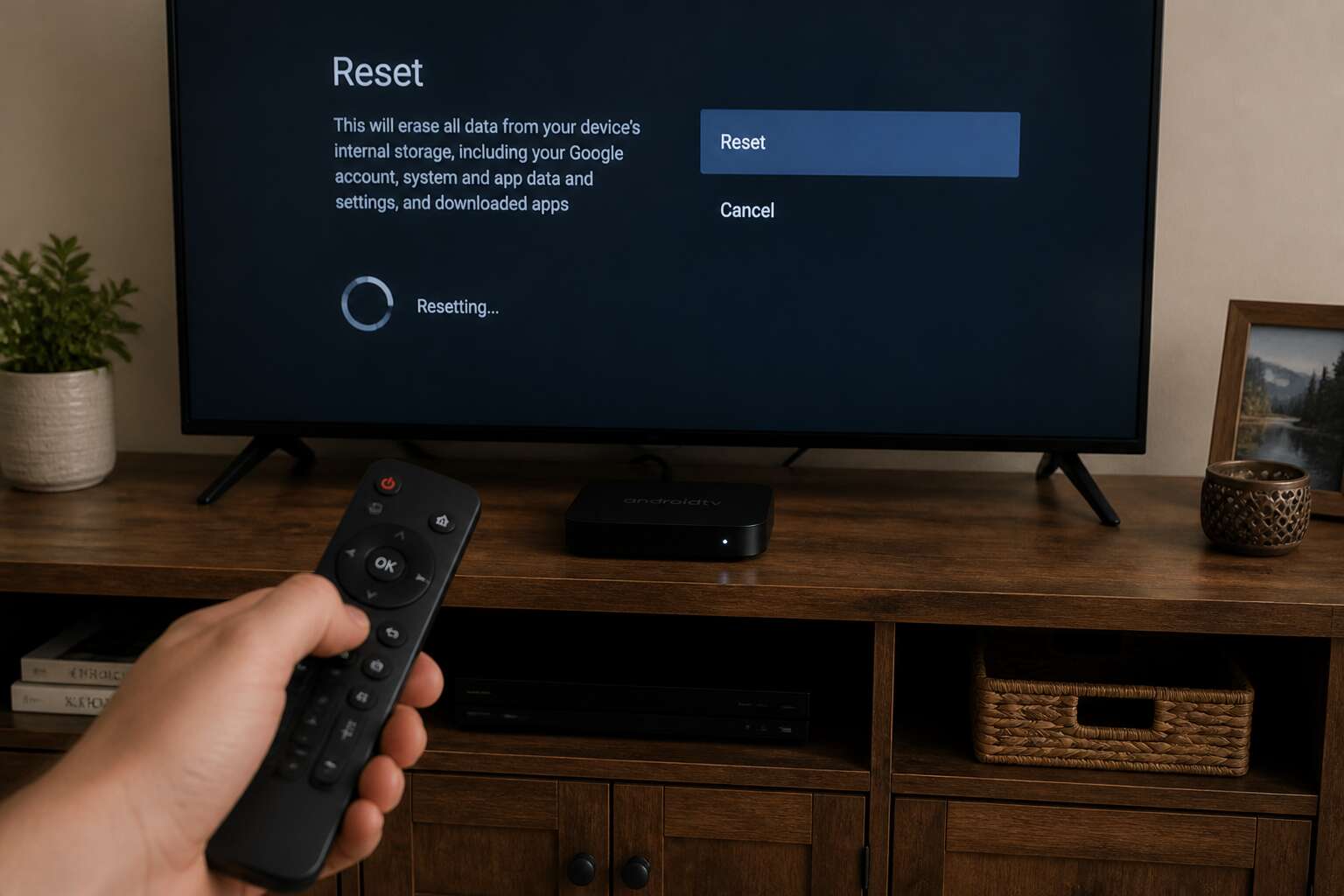
The android tv box reset function lives inside the settings menu. Open the gear icon from the home screen. Look for “Device Preferences” or “Storage.” The exact label shifts with firmware versions. Select “Factory Reset” from that submenu. The system requests your PIN or password before proceeding.
- Open Settings from the home screen.
- Select “Device Preferences” or “Backup & Reset.”
- Tap “Factory Reset.”
- Input your account PIN.
- Confirm the final warning.
The device restarts and erases all user data. A blank interface waits on the other side. The entire ritual takes a few minutes, leaving the system in its original state.
Navigating with a Remote Control
Navigating an android tv box reset with a remote control requires precision. The d-pad is your only tool. Every arrow key press moves you closer to wiping the device clean. It is tedious but effective.
The remote control ritual:
1. Point the remote at the box and press Home.
2. Scroll to the gear icon using the arrow keys.
3. Press OK to enter Settings.
4. Navigate to the storage or device preferences section.
5. Select Factory Reset and confirm with your PIN.
The entire android tv box reset process demands patience. You will press the OK button repeatedly as the on-screen cursor moves slowly. Resist the urge to press harder, the remote is not the problem. The system responds on its own timeline.
Accessing Recovery Mode via Key Combinations
Three seconds of holding a physical button can erase every corrupted file inside your system. Most Android TV boxes hide a recovery mode that operates independently of the normal interface. An android tv box reset through this route does not require a working menu or a functioning remote. You trigger it during the power cycle.
The standard key combination varies, but the principle remains consistent. Here is the typical sequence:
- Unplug the power adapter from the box.
- Locate the reset pinhole or the Volume Down key on the casing.
- Press and hold that physical control.
- Reconnect the power while keeping it pressed.
- Let go when the recovery screen materialises.
Use the volume buttons to move and the power key to confirm. This method works for any android tv box reset that resists the normal settings route.
Alternative: Using a Physical Reset Button
Some boxes skip the key combination process entirely. A dedicated reset pinhole sits recessed in the casing, usually near the HDMI port or on the underside. This is the direct route to android tv box reset for the average user.
You need a paperclip or a SIM ejector tool. The sequence:
- Straighten the clip and insert it firmly into the pinhole.
- Keep the pressure constant while you reconnect the power.
- Wait ten seconds for the bootloader to appear.
The button works independently of the operating system, which is exactly why it succeeds when the usual menus fail!
Not every unit has this feature. Older models from certain Chinese manufacturers use the pinhole only for emergency flashing. If your device lacks one, the volume key method remains your fallback. But for those that do have it, a full android tv box reset takes seconds with no menu needed.
Handling Interruptions or Errors
A factory reset can fail midway. The screen freezes, the progress bar stalls, or the device powers down before completing the write process. This happens often on units with slower flash storage.
When an interruption occurs, forcing another shutdown immediately makes matters worse. I have seen the android tv box reset routine recover after a sixty second pause. Give it that window.
Common issues to watch for:
- A frozen logo screen that persists beyond three minutes
- Repeated reboot loops after the reset completes
- The unit booting back to old settings instead of factory defaults
Each failure presents a different pattern. A frozen logo screen responds to a clean restart. Reboot loops signal a partial write, meaning the reset must run again. The unit reverting to old settings suggests the factory partition never flushed properly. Understanding those outcomes prevents a second failed android tv box reset.
Verifying the Reset Was Successful
The screen goes black after the progress bar fills, and for a split second you wonder if you have just bricked the device. That pause is normal. A functioning android tv box reset takes one or two minutes to restart before the setup screen appears.
That first boot is your clearest signal. If the device returns to your old wallpaper and app icons, the reset did not write correctly. If it lands on a language selection prompt, the android tv box reset worked. A device that loops on the logo has only partially reset. Each outcome tells a different story, and only the welcome screen offers reliable proof.
Verification also comes from small details:
- System time resets to an earlier date.
- Storage settings show the original free space, not your cached videos.
- The app list displays only pre-installed titles.
Post-Reset Setup and Optimization
Reconfiguring Network and Display Settings
After the reset completes, the device returns to a blank slate. Reconnect to your network first. Navigate to the Wi-Fi settings and select your router. If you use a wired connection, enable Ethernet in the network menu. South African households often have many devices competing for bandwidth, so choose the 5GHz band if your router supports it.
Display settings require equal attention. A fresh android tv box reset may leave the resolution at an unfamiliar default. Open the display settings and match the output to your television’s native resolution. This prevents overscan or blurry text, and it takes less than a minute! If your TV supports HDR, enable it here as well.
Consider these adjustments while in the settings menu:
- Set the correct screen refresh rate for sports or gaming
- Adjust the overscan percentage to fit your TV bezel
- Enable CEC to control the box with your TV remote
A static IP address keeps the network connection stable during heavy streaming sessions. After these changes, the android tv box reset feels complete and the device is ready for daily use.
Reinstalling Apps and Services
Once the android tv box reset clears the old software, the app store becomes your first destination. Services like Netflix, Showmax, and DStv Now require new installations, and each login presents a chance to verify profile settings.
The installation order matters. Streaming platforms deserve priority, followed by utilities like media players or VPN clients. South African connections handle staggered downloads well during evening hours. A thoughtful sequence prevents repeated trips to the settings menu.
- Streaming services before smaller utilities
- Storage checks after each installation
- Immediate app updates to prevent version conflicts
Local storage often surprises people. A completed android tv box reset reveals space that cached data had consumed.
Customizing Preferences for Performance
Post-reset configuration is the final step after a clean wipe. The android tv box reset removes years of accumulated compromise. Defaults favor stability over speed, which explains that sluggish feel right after boot.
Performance tuning starts in the preferences menu. I reduce animation scales in developer options first. Background process limits stop apps from jostling for memory. Auto-sync toggles prevent silent data drain.
Some settings demand deliberate choices:
- Animation length, shorter for snappier menus
- Launcher selection, lighter skins reduce overhead
- Location services, off unless a streaming app insists
South African summers punish electronics. A reset device runs cooler with good air circulation. Usage statistics in the settings menu reveal whether you solved the problem or merely postponed it.
Updating Software to the Latest Version
A fresh android tv box reset often restores the factory firmware, several versions behind the latest release. That clean installation needs current patches to run properly. Some boxes update automatically. Most do not. I head to the system update section immediately after the boot animation settles. Internet speeds vary across South Africa, so the download might test your patience!
Here is what I verify once the update finishes:
– The build number matches the manufacturer’s latest release
– The security patch level reflects the current month
– Play Protect certification passes without warnings
Skipping this step after an android tv box reset leaves the same vulnerabilities the wipe was meant to fix. Updating software to the latest version closes those gaps for good.
Securing Your Device with New Accounts
Fresh from an android tv box reset, the device runs with factory defaults. Old credentials vanish, which feels liberating! I create new accounts rather than reusing old passwords. This matters in South Africa where load shedding often interrupts connections mid-login.
The first account I secure is the Google profile itself. I enable two-factor authentication before anything else. A weak password undermines every subsequent security measure. I also review which apps receive permissions, because some request access for dubious reasons. I change the default device name, as generic identifiers are too recognizable. I disable guest profiles left over from previous ownership.
My setup checks:
- Recovery email address is current
- Purchase PIN is active
- Connected devices look familiar
- Automatic updates are enabled
These steps take minutes. They prevent future complications. The worst scenario after an android tv box reset involves someone hijacking your new account before you finish configuring it.
Avoiding Common Pitfalls and Future Issues
Preventing Unintended Resets
Unintended resets can ambush even the most careful user. One stray button combination on your remote might initiate a full android tv box reset before you realize what happened. I learned this the hard way when a curious toddler grabbed the controller and pressed three buttons at once.
To prevent future issues, adopt these habits:
- Disable hotkey shortcuts in the system settings.
- Keep the device in a stable, ventilated spot to avoid thermal panic resets.
- Use a surge protector to filter dirty power fluctuations.
These small actions preserve your configuration. You retain your apps, credentials, and personalized layout. A reset should be a deliberate choice, not an accident.
Managing Storage and Cache Regularly
After completing an android tv box reset, the most persistent pitfalls emerge from habit. Users reinstall every app from memory, carrying over the same bloat. Evaluate what you actually stream. A lean setup avoids the sluggishness that originally plagued the device.
Storage and cache demand regular attention. Every streaming session deposits data fragments, and these accumulate quietly. When cache files swell, playback stutters and the system lags, triggering the very symptoms that push people toward another android tv box reset. Clear cache through the storage settings every few weeks. Uninstall apps you have not opened in months. Monitor free space and keep a buffer of at least one gigabyte.
Recognizing Hardware vs Software Problems
A clean install can fool you into thinking all is well. If the same crash recurs within days, the problem lies beneath the software. Pay attention to patterns. A pixelated screen or a high pitched whine from the power adapter points to hardware. A boot loop that only appears after specific apps are installed points to software. After an android tv box reset, test the box in a cool, ventilated space. Overheating mimics software faults. Also consider these red flags:
- The device shuts down at the same point every time
- The remote works only when pointed directly at the box
- Ethernet disconnects while Wi-Fi remains stable
Each symptom points to a different component. Recognising these early saves you from performing an android tv box reset that will never fix the root cause.

0 Comments